

How to avoid online risks: simple steps to be safer online
Here are simple steps to avoid online risks
- Use a strong password: Too often, people pick weak passwords for their devices. They use their birth year, the name of their kids or their family members. All these could be pretty easy for someone to guess. When choosing passwords, make it as hard to guess as possible. Aim for a mix of uppercase and lowercase characters, numbers and symbols.
If possible, try to be creative- think beyond a word, phrase or sequence of numbers. For example, passwords like gKY2d19@Gb.


3. Enable Screen Lock on your Devices: This is why it is important to have a screen lock on all your deices. Lock your phone, computers and all your devices when you are not using them whether its with a password, pin, pattern.


In some cases, your phone was stolen, use Google search or Google Play Store, ‘Find your phone’ from another device to check the location of your stolen phone. You could lock it, or send a message to the person who stole the phone to kindly return it. You could ring the person loud and you could delete all your data remotely.
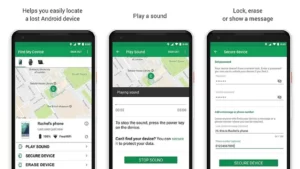
After your phone gets stolen, you have to be careful about messages you receive especially messages from your bank, confirming a payment or transaction. You must be able to know that is ‘Phishing’
4. Try to Update Windows and Necessary Software
Sometimes you could be browsing online and you could get an alert from the computer that says, ‘your computer is infected, click here to fix it.’ This could be a scam technique.
Although, not all alerts are scams. Those frequent alerts that ask you to update your device software and operating systems may seem annoying especially with the delay it usually takes, but often these updates patch holes in security. Because of these, scammers tend to target people who have not updated their devices.


5. App Permission: Before you install an app to any device, the app will request permission to access certain data (like location, friend list, contact) or capabilities like (camera, voice).
Before you download, Google play will show you everything an app will be able to access, which can help you decide whether or not you want to install the app. Look over these permissions and make sure they make sense for that particular app. You can allow or deny individual permission request if you are not sure of the app.


If you are getting to read this, you can go through permission in your apps on your devices that you have downloaded already and allow or deny the ones you don’t think it’s necessary to protect you from scammers or apps with scamming interests.
6. Update App: Safety doesn’t stop once you have downloaded an app. It is important to keep your apps updated, especially ones that hold personal or financial data. Some apps update their security patch which would also be beneficial for the users too.
App developers make updates to stay ahead of security concerns and fix little things that might be broken. By keeping apps up to date, you ensure you’re using the most secure version.
7. Malware and viruses: Another way someone could steal your data and personal information or damage your computer is through viruses. This comes from opening attachments or links from unknown emails or ones that have been ‘spoofed’ to look like they’re coming from a trusted source or even by clicking on malicious online ads and downloading software.
Try and get the Google Play Protect on your phone. It will help keep your devices safe.


8. Public Wi-Fi: No matter how economical you may be, never use public Wi-Fi e.g. (Hotel Wi-Fi etc.) on your devices. The worst is when you use it to log into your social media accounts or bank transactions, making purchase or sending sensitive information because it can be more easily intercepted. Although, some people believe that networks with passwords are safer. With passwords, only those who are authorized can access the network, making it harder for semen to intercept personal data. Nevertheless, to be on the safer side, don’t do anything serious with public Wi-Fi. You may want to How to stay safe on public wifi


9. Creating WIFI for Customers
When creating your own Wi-Fi, use a strong password and try to change it periodically. If you are a business owner that likes to offer customers access to Wi-Fi, then consider having one Wi-Fi network for customers and another for employees to use for payments, transactions and other important work.
Related Articles

